Halloween projects

Set the scene for Halloween.

A haunted-house headline needs a different voice from a family invitation. Start with your project, then choose the words, mood and canvas in the studio.

Start with your project

Examples show the lettering direction. Drafts use the canvas ratio listed below; your generated composition will vary.

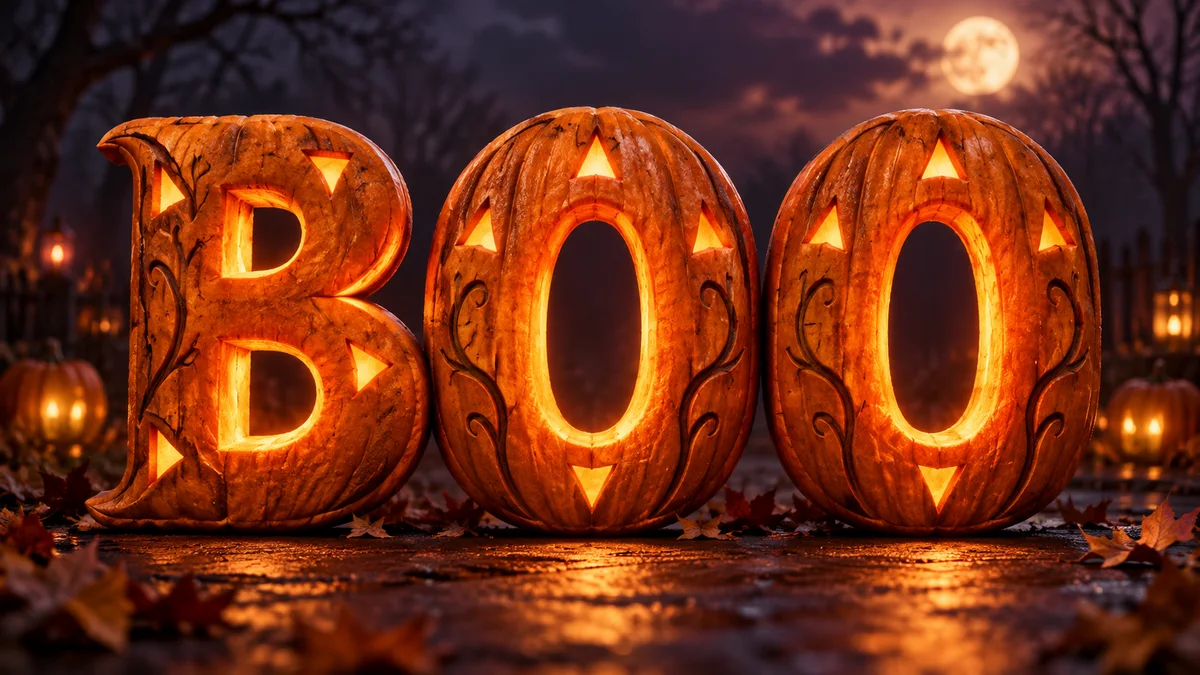
BOO pumpkin-glow lettering example for a Halloween headline

Draft canvas 16:9 · PNG lettering

Party & haunted-house titles

Create one bold headline for a party flyer, event banner or spooky thumbnail.

  1. 01Prepare a 16:9 landscape draft for a short, readable title.
  2. 02Start with Pumpkin Glow for warm orange letters on a dark background.
  3. 03Add the date, venue and booking details in Canva after export.
Prepare this draft
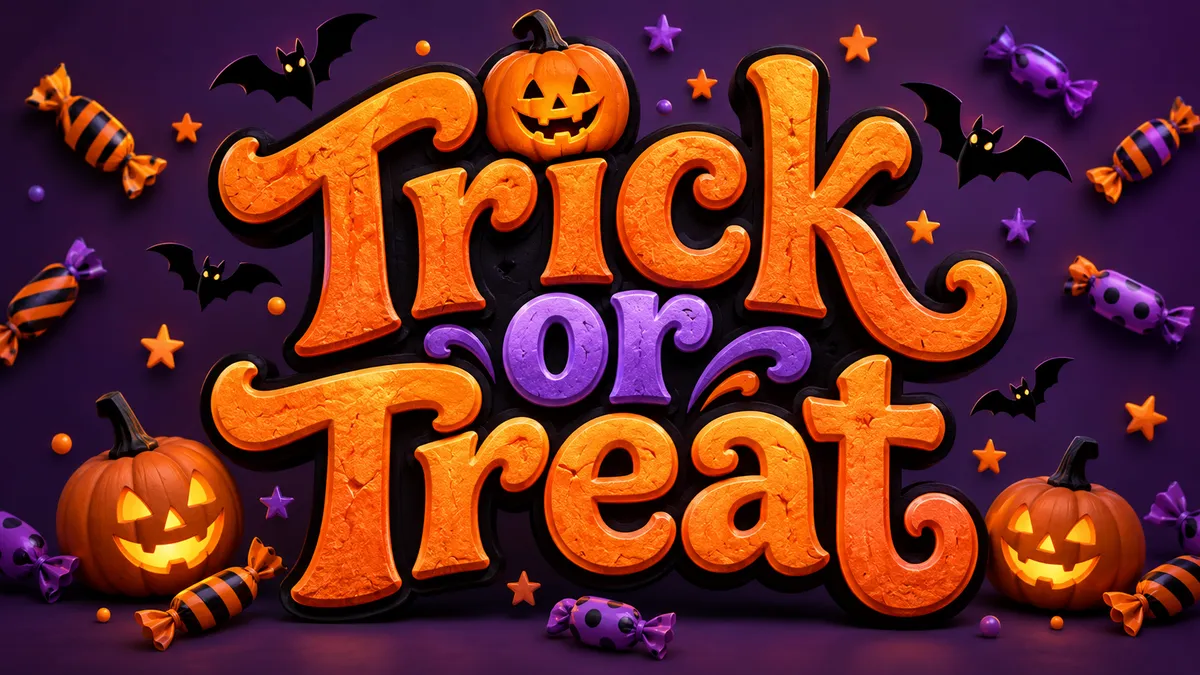
Trick or Treat candy-colored lettering example for an invitation heading

Draft canvas 4:3 · PNG lettering

Playful invitation headings

Set a lighter Halloween mood for a family party or trick-or-treat invitation.

  1. 01Open a 4:3 draft with a short invitation heading.
  2. 02Choose Candy Bat for a friendly, colorful treatment.
  3. 03Finish the event details and RSVP text in a separate layout editor.
Prepare this draft
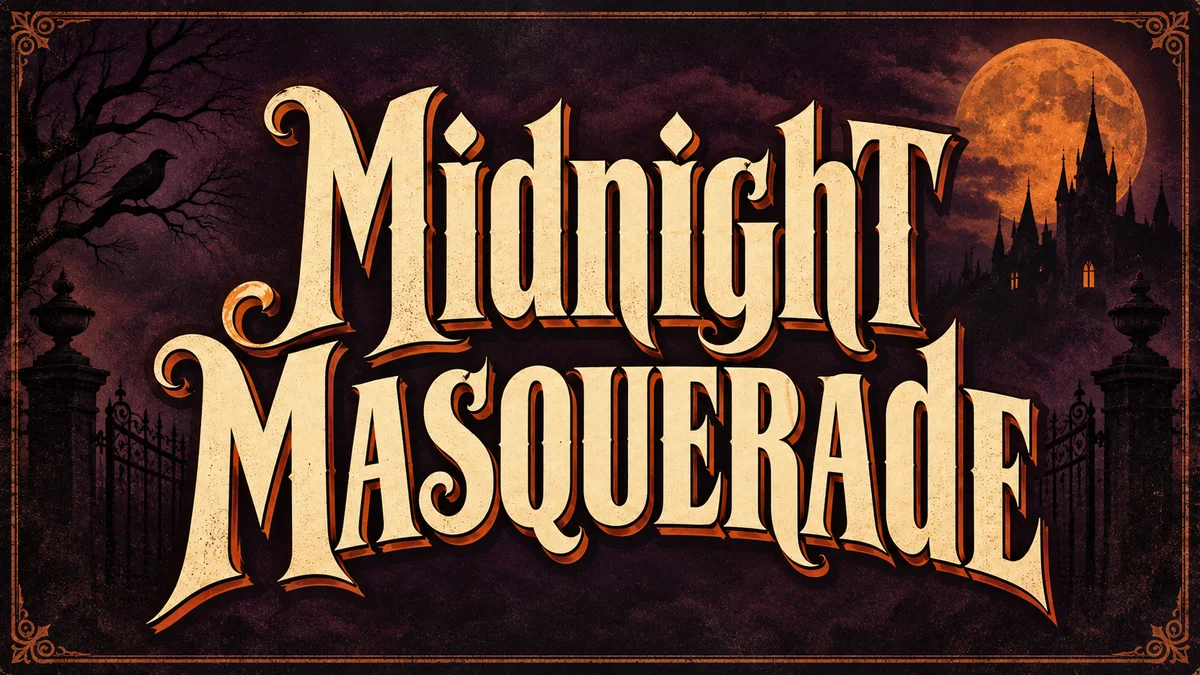
Midnight Masquerade editorial retro-horror lettering example; the video draft uses a portrait canvas

Draft canvas 9:16 · PNG lettering

Horror video titles

Make a dramatic title image for a short, teaser or Halloween reel.

  1. 01Start with a 9:16 canvas and leave room for the video interface.
  2. 02Use Retro Horror for a distressed poster-lettering direction.
  3. 03Import the static image into your video editor, then add sound and animation.
Prepare this draft

From a heading to a finished design

These workflows create lettering artwork. Complete invitations, print layouts and animated videos are finished in your design editor.

Prepare your words

Choose a task below to open a draft with the preset, wording and aspect ratio already selected. Opening a draft does not generate an image.

Review and generate

Change the words and settings in the studio. AI generation uses credits; check the displayed cost before generating.

Finish your layout

Download the lettering and place it in Canva, CapCut or another editor. Add event details, animation or print settings there.

Need a different kind of spooky?

AI images work in posters and videos. Copyable characters work in a bio or message; they are a different output.

Halloween project questions

No. The link only fills in the studio settings. You can review and change them first. Creating an AI image uses credits at the price shown by the Generate button.