Spooky Text in CapCut: A Halloween PNG Title Workflow
Make a Halloween title PNG, add it above your CapCut footage, and animate it in the editor. Includes transparent backgrounds, readable timing and common fixes.
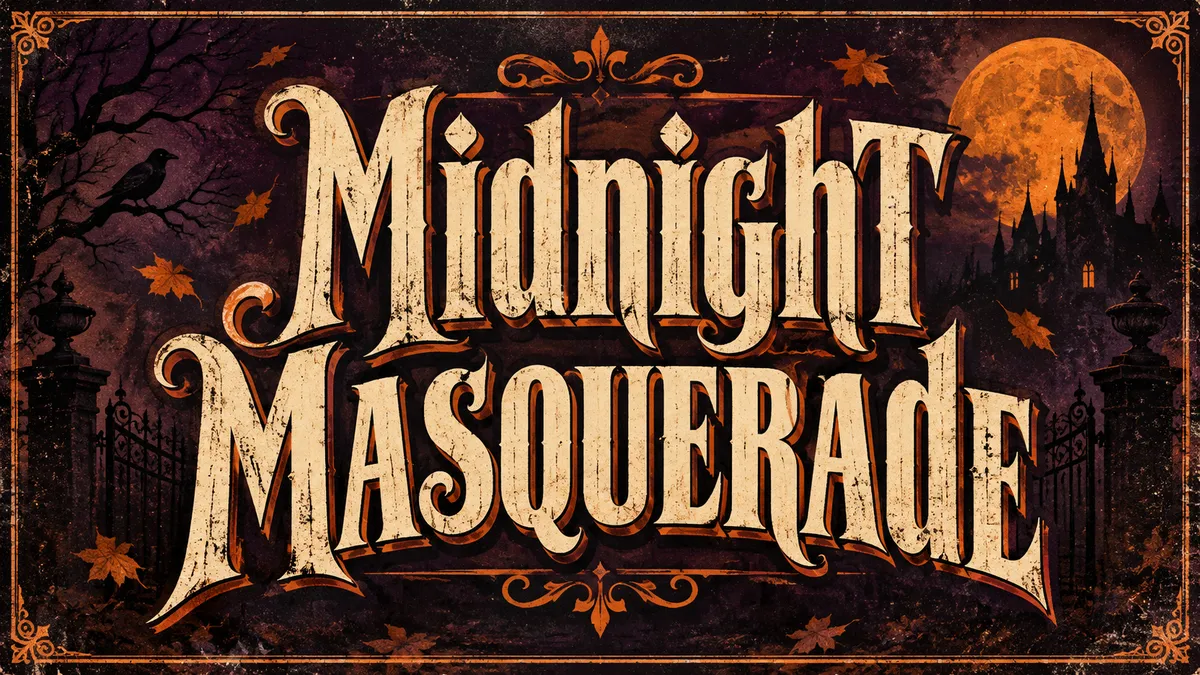
A spooky video title works best when the lettering and the motion have separate jobs. Create a readable title image first, then use CapCut to decide when it appears, how it enters and how long viewers can read it. Our text-effect tools produce static images; they do not generate animated text or an editable CapCut text layer. This guide explains how to select PNG output for that workflow.
The Retro Horror image above is a finished title-card example. Its printed texture, scenery and frame are part of the artwork. It is not a transparent overlay or a screenshot from CapCut.
Choose a title card, an overlay or editable text
- Full-screen title card: use the Halloween text generator for a short phrase with a complete scene. Place the image between video shots or at the start of the edit.
- Title above existing footage: use a transparent image from the PNG text tool. You control the real font, fill and outline, and the background can be genuinely transparent.
- Words that change repeatedly: use CapCut's own text features so the wording remains editable. A PNG is better suited to a fixed title or name.
- Spooky characters in a post caption: use the creepy text generator. Its Unicode output is text, with appearance depending on the destination app and device.
If you want red dripping lettering, the blood-drip style is another starting point. It also produces a still image; dripping material in the artwork does not mean the drops will move.
Build the title before adding motion
1. Start with one short phrase
Try “Midnight,” “Haunted House,” or “Costume Reveal.” Keep practical information such as subtitles, names and dates in ordinary editable text. Two or three clear words usually survive motion and a small phone screen better than a full sentence of distressed lettering.
Decide whether the video is landscape or portrait. For a full-screen card, choose a matching image ratio. For an overlay, make a compact title with space around the edges rather than filling a wide canvas with tiny letters.
2. Make and check the PNG
For an illustrated card, open the Halloween style in the workbench, choose a preset, and select the Standard model with PNG output before generating. The style page's Quick generation produces JPG when its transparent option is off; choose the workbench settings above for a PNG of the complete title card. Check the spelling and letter edges in the actual result. The workbench preview is a typography sketch; it is not a promise of the final texture or composition.
For an AI overlay, the style page also offers Transparent PNG (experimental) with Quick at 1K. You can select Quick and Transparent PNG under Background in the studio. This is separate from the Standard workflow above: a Standard PNG does not guarantee transparency. Inspect the downloaded image over light, dark and colored backgrounds, especially around smoke, glow and fine edges.
For a clean overlay, type the phrase in the PNG text tool, choose a bundled typeface and use a contrasting fill and outline. Leave Transparent background selected. Check the title on both light and dark preview backdrops, then download the PNG at a size suitable for its intended placement.
An AI image saved as PNG may still contain a full background. Check it over a colored surface before importing it as an overlay. If it has an unwanted rectangle, use the artwork as a title card, edit its background separately, or export clean transparent lettering from the PNG text tool. The tool does not remove backgrounds from uploaded AI images.
3. Import it into your CapCut project
Import the saved image as media in the project containing your footage. For a title card, place it as its own image segment. For an overlay, add it on an image layer above the footage. The exact controls differ between mobile, desktop and web versions, so follow the image-import and layer controls available in your editor.
Resize proportionally. Keep the title inside the visible frame and away from areas that the publishing app may cover with captions or buttons. Check against both a bright and a dark moment in your clip; a title that works on the first frame can disappear when the shot changes.
4. Set the reading time before the entrance effect
Start with a short title held still for about two seconds, then adjust after watching the sequence. This is a starting point, not a platform requirement. A longer phrase needs more reading time, and an elaborate entrance should not consume the entire period the title is visible.
Try one restrained movement using the animation or keyframe controls available in your version of CapCut: a fade, a small scale-up or a short upward move. Avoid adding several shakes, zooms and flashes at once. The goal is to make the lettering easy to notice and then easy to read.
5. Watch the exported video
Review the exported result on a phone, including the transition into and out of the title. Check that letters stay sharp, the image does not stretch, and the title remains on screen long enough. Exporting video animates the placement you created in CapCut; it does not turn the PNG's painted fog or drips into separately moving objects.
Three Halloween directions to try
Costume reveal: use Candy Bat or Pumpkin Glow for a playful title. Keep the opening motion short, hold the text steady, then reveal the costume underneath or in the next shot.
Haunted-house teaser: use Moonlit Mist or a dark illustrated title card. Give the letters enough contrast to remain visible even when the footage behind them is dim.
Retro horror introduction: use Retro Horror or blood-drip lettering, a short phrase and one restrained fade or scale change. If the source image includes a complete poster frame, show the full artwork rather than cutting the letter edges to fill a portrait screen.
Troubleshooting
There is a rectangle around the title. PNG is a file format, not a guarantee of transparency. Check the actual file over a colored background. Export again with the transparent option in the PNG text tool, or keep the generated scene as a complete title card.
The title is blurry. Import the original PNG rather than a screenshot. Avoid scaling it beyond its source resolution. If a wide title needs to be enlarged heavily in a portrait video, shorten the phrase or make a new layout.
The letters disappear over bright footage. Try a darker outline, change the title's fill, or move it to a quieter area of the frame. Check the whole duration, not just the first frame.
You cannot correct a word inside CapCut. A PNG is one image. Change the text in the source tool and replace the image in your project, or rebuild it as native text if you expect frequent revisions.
FAQ
Is this an animated Halloween text generator?
No. The generated artwork is static. You create the entrance, position changes and timing in CapCut. For independently moving letters, use editable text or prepare separate letter assets in an appropriate editor.
Can I install the PNG as a CapCut font?
No. A font file such as TTF or OTF describes reusable letter shapes; a PNG is a fixed picture of the words you entered. This workflow imports an image, not a font file.
Can I make an overlay without AI credits?
Yes. The PNG text tool renders clean lettering in your browser without AI credits. Generated material effects and scenes use the workbench's displayed generation price. CapCut's available features depend on the version and account you are using.
Can I reuse the title on an invitation?
Yes. Keep the original PNG and place it as an image in the design. See the Canva Halloween invitation guide for a layout that keeps the event details editable.
Choose a Halloween style for a complete title card, or create a transparent PNG overlay for your footage.
For the editor's image-layer and duration workflow, see CapCut's official picture-overlay guide.