Gradient Text Generator

Choose a typeface, blend your colors and set the direction. Download your words as a PNG, or keep the text editable with CSS and HTML.

Free local rendering · no account or credits · real fonts and editable code

ASCII text · 60 characters/line · 3 lines · 100 total.

Try a palette

Your preview

Local rendering · no credits

Loading your typeface and drawing the gradient…

The checkerboard marks transparency and is not exported. PNG uses these rendered pixels. CSS and HTML keep the text editable; their appearance can vary with the browser and surrounding styles.

View & select code

Full code includes the font and its license; the stylesheet preview shows the editable rules. Download HTML for a self-contained page you can open offline. No image-generation service is used.

Show complete CSS & HTML
Font source & export notes

The preview uses the selected self-hosted font. Complete CSS and HTML embed that font and its license. You can replace the embedded font with your own licensed file and update the font family. Check your final layout and contrast after pasting the code.

Manrope

Gradient colors

Use 2–5 colors. Positions run from 0% to 100% and stay in ascending order.

Gradient angle
Font & image settingsManrope · 1200 × 600

Three gradients, with the settings included

Compare these actual PNG exports, then load a layout to try its colors, typeface and canvas with your own text.

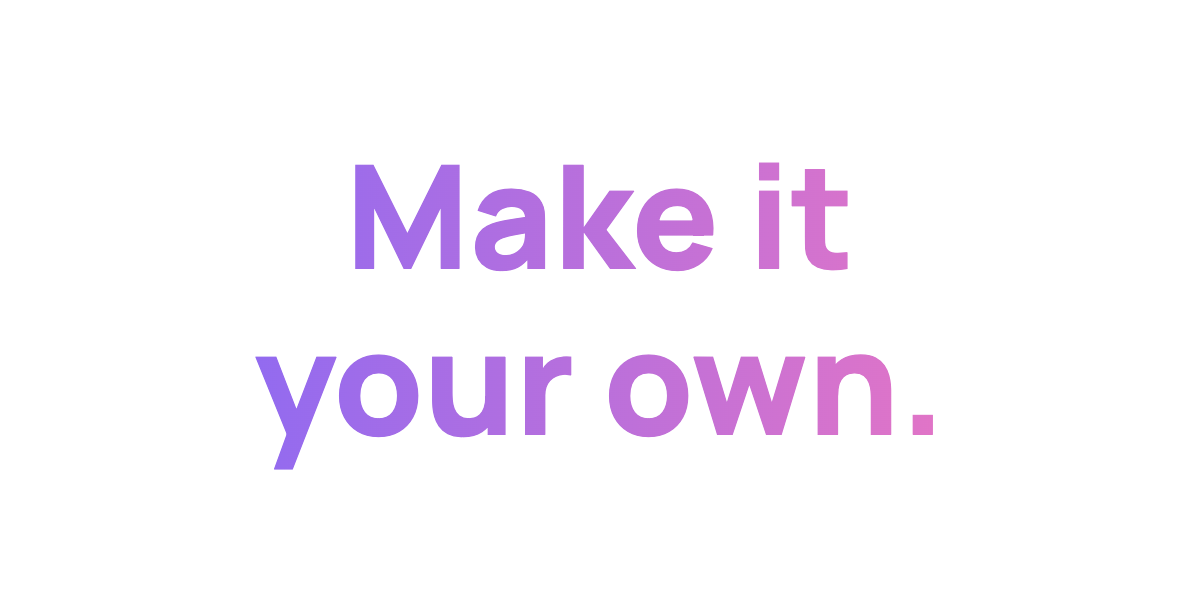
Make it above your own. in bold Manrope, with a violet-to-pink gradient
Actual PNG export

A violet-to-pink headline

Two lines of Manrope with a left-to-right gradient. Use the transparent PNG as a title layer in a design.

Exact text & settings

Input text

Make it
your own.
Typeface
Manrope · 144 px · line height 1.15 · spacing 0
Canvas
1200 × 600 · padding 48 · centered · transparent
Gradient
90° · #7567ff at 0% → #ff78b7 at 100%

The gradient spans the full 1200 × 600 canvas, so each line shares the same color field.
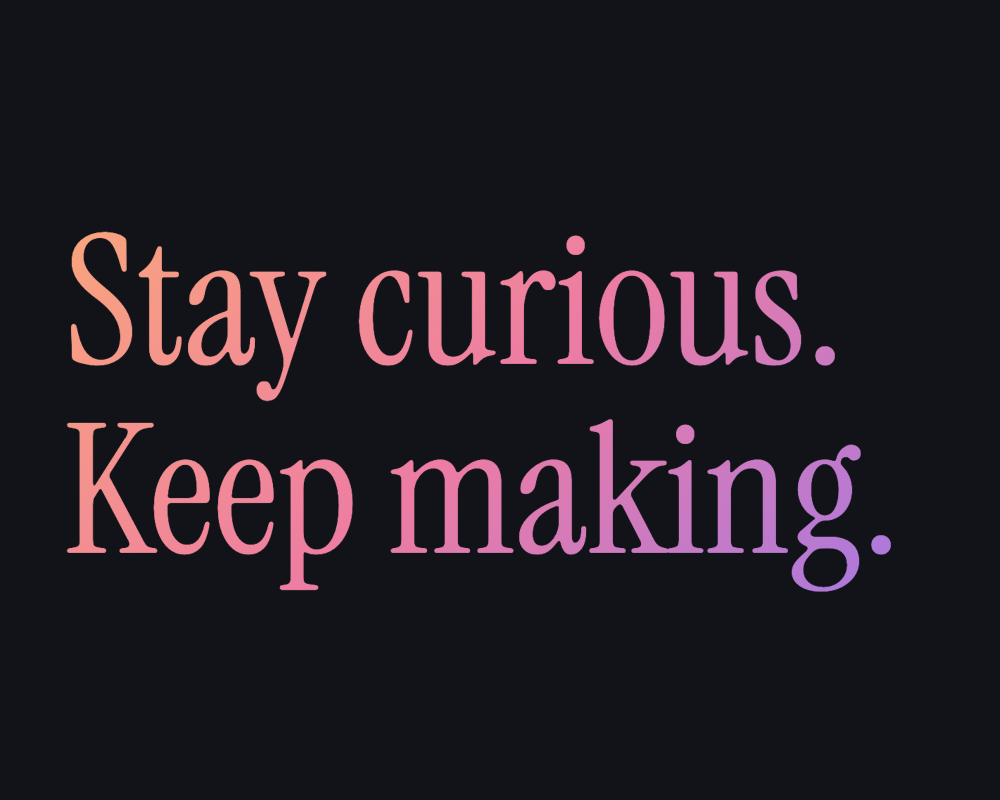
Stay curious. above Keep making. in Instrument Serif with a peach, rose and violet gradient on dark gray
Actual PNG export

A serif title with three colors

Instrument Serif carries a diagonal peach, rose and violet gradient on a dark 1000 × 800 canvas.

Exact text & settings

Input text

Stay curious.
Keep making.
Typeface
Instrument Serif · 180 px · line height 1.05 · spacing 0
Canvas
1000 × 800 · padding 64 · left aligned · #111319
Gradient
135° · #ffb86b 0% · #ed7ca3 50% · #8577ff 100%

The font size is the requested size. If the measured text needs more room, the preview reports the smaller fitted size.

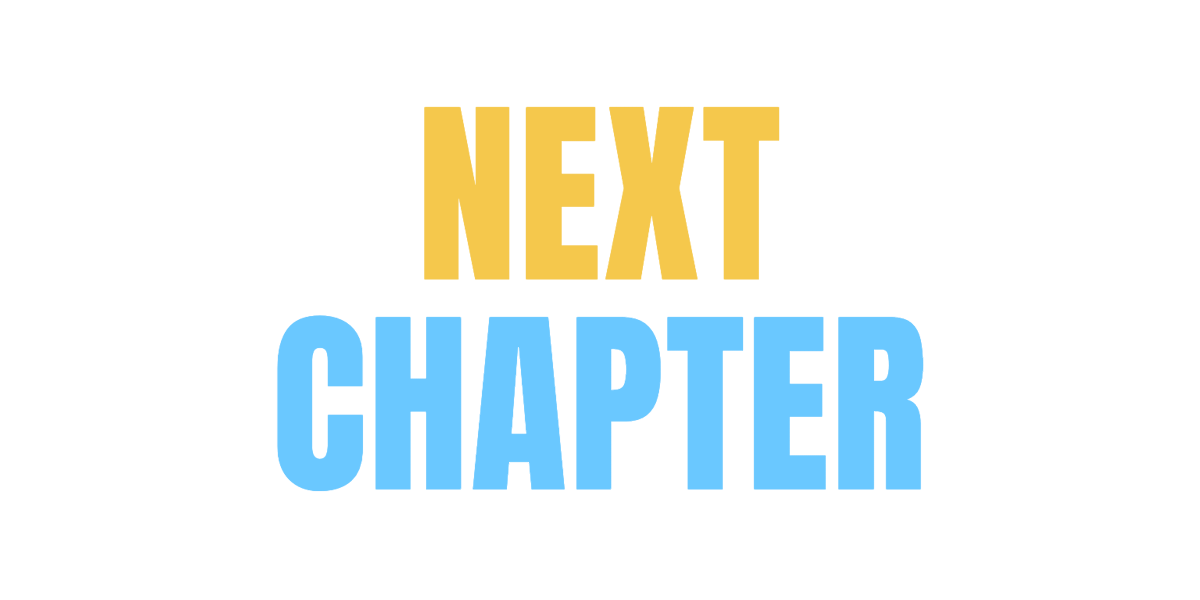
NEXT above CHAPTER in Anton, with a sharp horizontal split from gold above to light blue below
Actual PNG export

A clean two-color split

Place two different colors at 50% to make a sharp boundary. Here the split runs between two lines of Anton.

Exact text & settings

Input text

NEXT
CHAPTER
Typeface
Anton · 200 px · line height 1.05 · spacing 2
Canvas
1200 × 600 · padding 48 · centered · transparent
Gradient
180° · gold #f5c84c at 0/50% · blue #6ac8ff at 50/100%

The two 50% stops are intentional. Equal positions produce a hard color cut instead of a smooth transition.

Make the violet-to-pink headline

Start with a 1200 × 600 image. The same canvas will define the gradient in the PNG and the exported code.

  1. Add the two lines

    Enter the text below. Open Font & image settings and choose Manrope, font size 144 px, letter spacing 0 and line height 1.15.

    Make it
    your own.
  2. Place the colors

    Use two stops: #7567ff at 0% and #ff78b7 at 100%. Set the angle to 90° for a left-to-right gradient. Equal stop positions can be used later for a hard color cut.

  3. Check the canvas and fit

    Set width 1200, height 600, padding 48 and Center alignment. Enable Transparent background. If longer wording needs to shrink, the preview reports the fitted font size.

  4. Download or copy your result

    Download PNG for an image layer. Download HTML for a complete offline page, or use Copy HTML / Copy CSS for editable code with the selected font and its license embedded. Check the final size and contrast where you place it.

Color stops set the transition; angle sets its direction

Use 2–5 six-digit hex colors with positions from 0% to 100%, ordered from low to high. Colors at the same position create a sharp cut. Stops inside the endpoints extend their outer colors to the edge.

Angles follow CSS: 0° points up, 90° right, 180° down and 270° left. Both PNG and CSS use the full canvas as the gradient area, including its padding. Multiple lines share one gradient rather than starting a fresh gradient on each line.

The tool uses sRGB interpolation in Canvas and explicitly requests sRGB in the CSS gradient. Change the angle, color positions or canvas proportions to see how the same palette moves across the letters.

Choose an image or editable text

The PNG is a fixed-size image with a transparent or solid background. It contains the rendered glyphs at the export dimensions shown beside the preview. Manrope, Anton, Montserrat, Bebas Neue and Instrument Serif are the available real typefaces.

Complete CSS includes an embedded font and its license. Complete HTML adds the text, styles and a document wrapper, so the downloaded file can open offline. The short stylesheet preview omits the font data for readability; use the copy buttons for complete code.

Exported HTML uses editable text with background-clip: text on a fixed canvas. Auto-fit exports the measured smaller font size and spacing when needed. Editing that text or changing its CSS later does not rerun auto-fit. Browser rendering and surrounding page styles can also affect the result.

Keep the text within the supported range

Use printable ASCII: English letters, numbers, spaces and standard punctuation. This version supports up to 100 visible characters, 60 on one line and 3 lines. It reports unsupported characters instead of substituting a different font.

Choose a width from 256–2048 px and a height from 128–2048 px. Padding leaves space around the measured letter shapes. Very tight negative spacing at a small font size can collapse a line; increase the spacing or size if the editor asks.

Rendering happens in your browser after the font and its license load from this site. No image-generation service is used. If a font request fails, retry the preview before exporting.

Gradient text generator FAQ

Yes. Local previews, PNG downloads and CSS/HTML exports do not require an account or credits. Your browser loads the selected font and its license from this site before preparing the result.

Keep shaping your text

Text to PNG

Use solid colors, outlines and a wider font selection on a custom canvas.

Curved text generator

Bend a title around an arc, circle or wave and export an image.

Text images and font files explained

Choose the right output for an image layer, a website or an installed typeface.