Christmas projects

A little lettering. A lot of Christmas.

Choose what you are making first: an event title, a greeting or a video. Each starting point pairs a different lettering treatment with a useful canvas shape.

Start with your project

Examples show the lettering direction. Drafts use the canvas ratio listed below; your generated composition will vary.

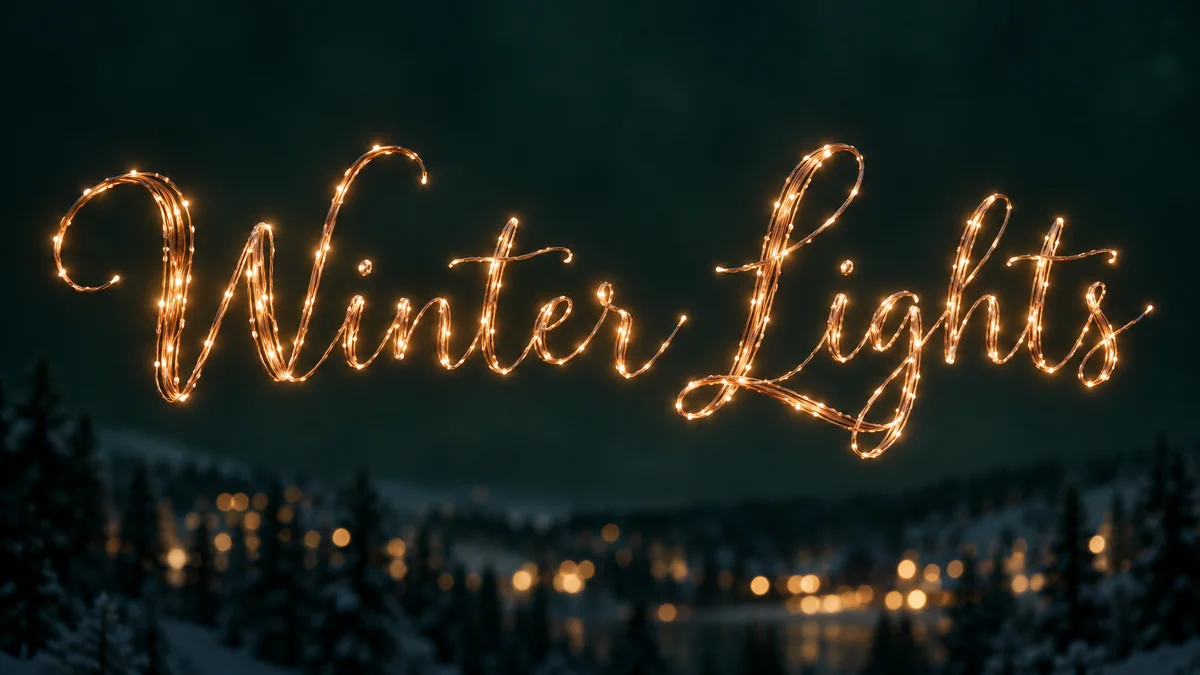
Winter Lights editorial lettering example with copper-wire lights

Draft canvas 16:9 · PNG lettering

Event & shop titles

Make a warm, readable heading for a winter sale, concert or social post.

  1. 01Start with a landscape 16:9 canvas and a short event name.
  2. 02Use Fairy Lights for warm lettering against a dark scene.
  3. 03Place your date, offer and venue in a layout editor after export.
Prepare this draft
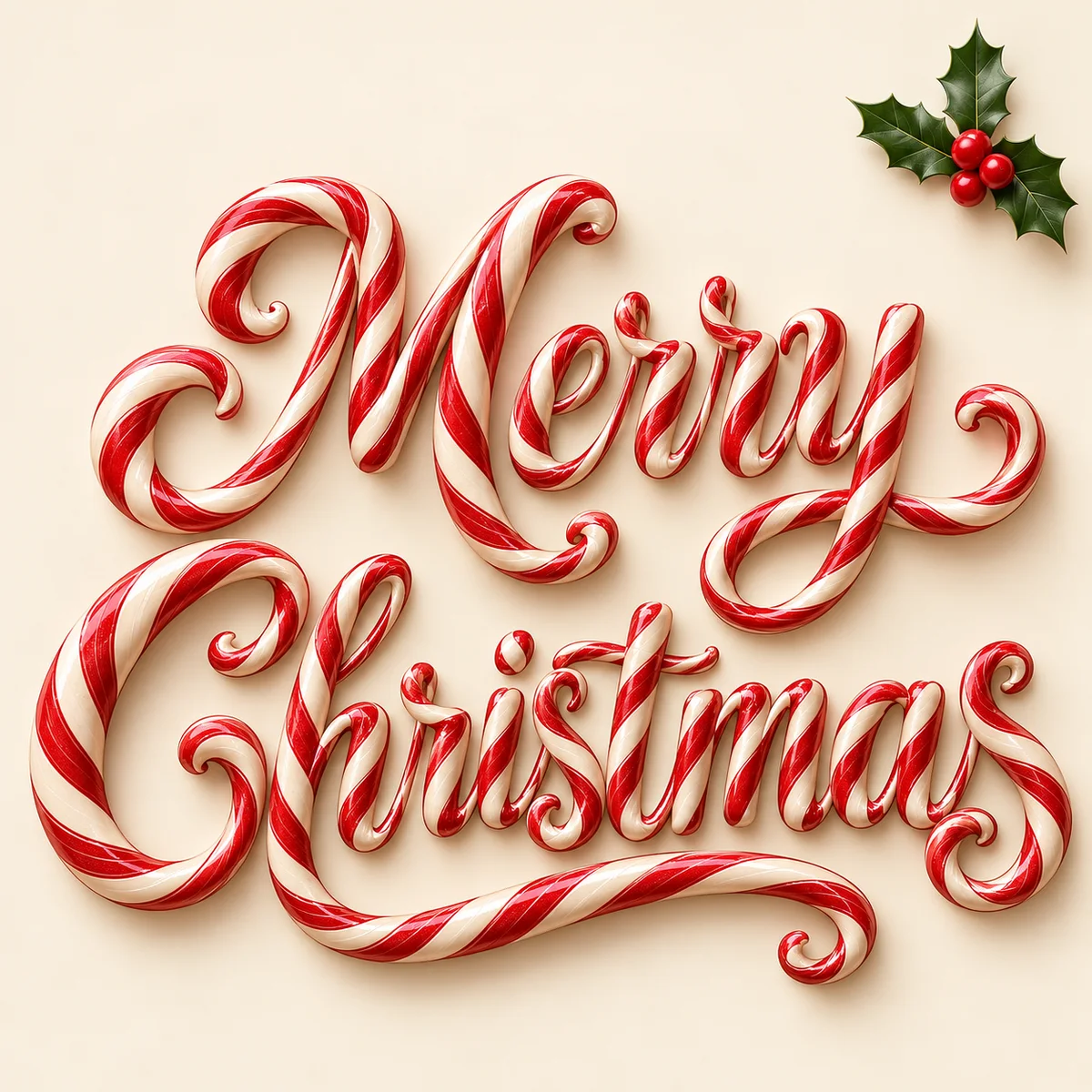
Merry Christmas editorial greeting with red and cream candy lettering

Draft canvas 4:3 · PNG lettering

Greeting card headings

Create the decorative words for a card you will finish in your own editor.

  1. 01Prepare a 4:3 draft for a greeting, such as Merry Christmas.
  2. 02Keep the main phrase large and leave space around the edges.
  3. 03Add your message and signature separately; check the final print size in your editor.
Prepare this draft
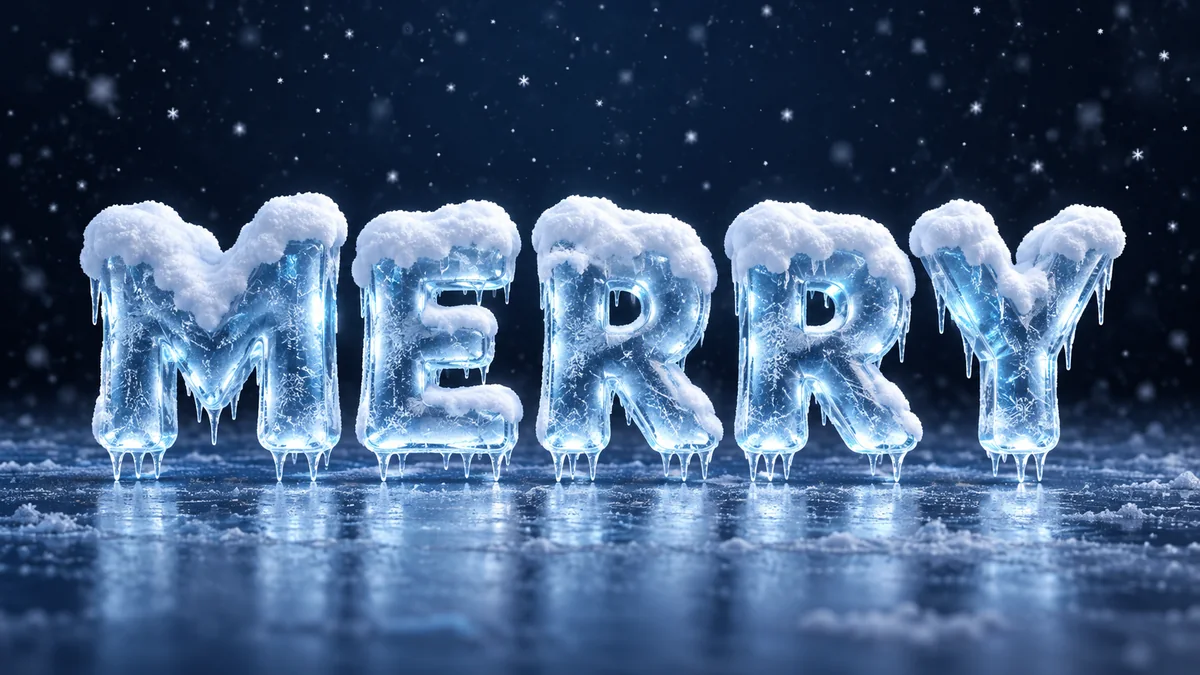
MERRY snowcap lettering style example; the video draft uses a portrait canvas

Draft canvas 9:16 · PNG lettering

Vertical video titles

Give a holiday reel or short a single, legible seasonal title.

  1. 01Use a 9:16 portrait draft with the phrase centered.
  2. 02Choose Snowcap for bright letters against a winter scene.
  3. 03Import the static PNG into CapCut or your video editor and add timing or motion there.
Prepare this draft

From a heading to a finished design

These workflows create lettering artwork. Complete invitations, print layouts and animated videos are finished in your design editor.

Prepare your words

Choose a task below to open a draft with the preset, wording and aspect ratio already selected. Opening a draft does not generate an image.

Review and generate

Change the words and settings in the studio. AI generation uses credits; check the displayed cost before generating.

Finish your layout

Download the lettering and place it in Canva, CapCut or another editor. Add event details, animation or print settings there.

Choose a different finish

Use a material effect for original imagery, or a real-font PNG when you need consistent letter shapes.

Christmas project questions

No. The link only fills in the studio settings. You can review and change them first. Creating an AI image uses credits at the price shown by the Generate button.