Halloween Text in Canva: Make a Spooky PNG Title
Create Halloween lettering for a Canva invitation or poster. Choose an illustrated title or transparent PNG, import it, and keep event details editable.
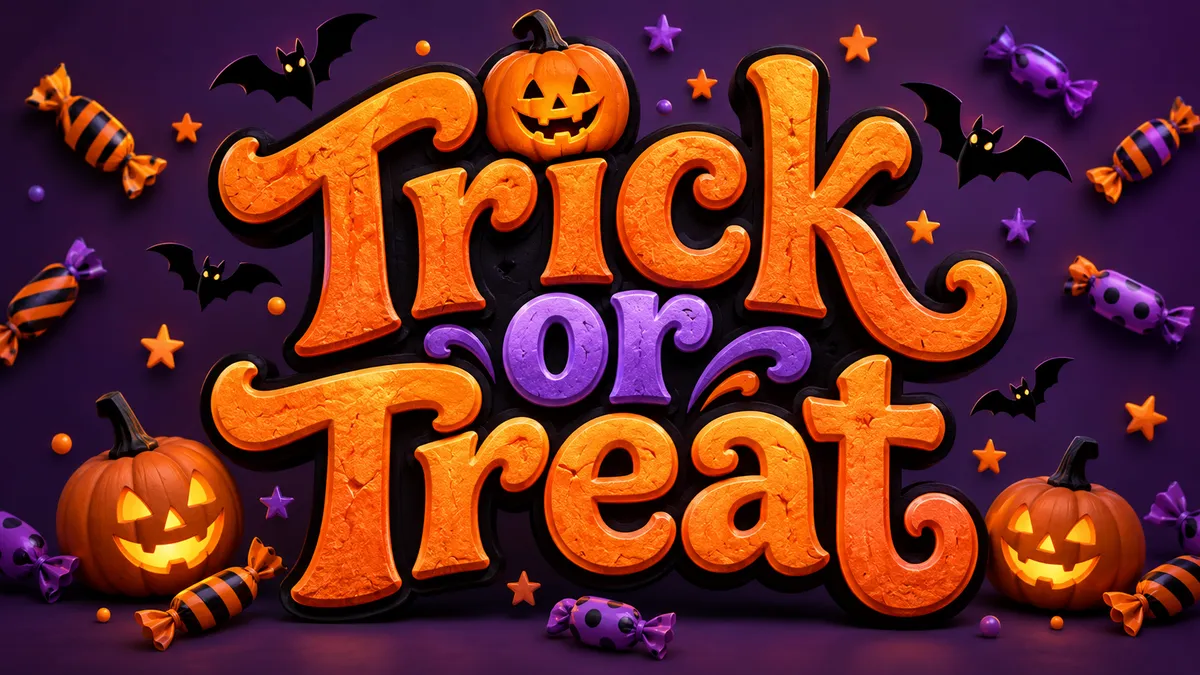
A Halloween invitation needs two things: a title with atmosphere and event details that guests can read. Make the title as a PNG, place it in your Canva design, and keep the date, address and RSVP as ordinary text. That gives you a decorative headline without making every later correction a new image-generation job.
The artwork above is our Candy Bat example, with orange-and-purple lettering on a complete illustrated background. It is a style reference, not a Canva screenshot or a transparent overlay.
Choose the right kind of Halloween text
- A dramatic party title: use the Halloween font generator for pumpkin glow, haunted drips or retro horror artwork. The output is a static image.
- Clean lettering with a transparent background: use the PNG text tool. It renders the font and colors you choose directly in your browser, with a real transparent-background option.
- Words you need to edit inside Canva: use a text element and a font available in your Canva account. An imported PNG does not become editable text.
- Spooky characters for a caption or bio: use the creepy text generator. It produces copy-and-paste Unicode characters, not an image or an installable font.
For a family party, try Candy Bat or Pumpkin Glow. For a late-night event, try Moonlit Mist or Retro Horror. For stronger red drips, start with the blood-drip lettering style and keep the title short.
Make a title for a Canva invitation
1. Write the title before you decorate it
Use one short phrase such as “Pumpkin Party,” “Trick or Treat,” or “Midnight Masquerade.” Put the date, venue and other information aside for now. Long sentences make the decorative lettering smaller and harder to read.
Choose the shape of your final design before generating. A wide title works well across a landscape invitation. For a portrait poster, use a shorter title or a compact two-line arrangement so you do not have to stretch a wide image to fill the page.
2. Choose an illustrated title or a transparent overlay
For a complete illustrated panel, open the Halloween style in the workbench, select a preset, then choose the Standard model and PNG output before generating your short phrase. The style page's Quick generation produces JPG when its transparent option is off; the workbench settings above produce a PNG of the full scene. Inspect every letter in the finished image before downloading it. The workbench's typography preview is a sketch of the direction; the generated image supplies the actual textures and scenery.
For an AI overlay, the style page also offers Transparent PNG (experimental) with Quick at 1K. You can select Quick and Transparent PNG under Background in the studio. This is separate from the Standard workflow above: a Standard PNG does not guarantee transparency. Inspect the downloaded image over light, dark and colored backgrounds, especially around smoke, glow and fine edges.
For predictable transparency, open the PNG text tool, type the title, choose a bundled font, and set an orange or pale-cream fill with a contrasting outline. Leave Transparent background selected. Check the lettering against both the dark and light preview backgrounds before downloading. Those preview backgrounds are not included in a transparent export.
AI artwork can contain a solid scene or background even when you ask for isolated lettering. Do not assume a PNG file is transparent simply because its extension is .png. Check it over a colored background; if it still has a rectangle, use it as an illustrated panel, edit the background in an image editor, or use the deterministic PNG tool for a clean overlay.
3. Import the PNG into your Canva design
Open the invitation or poster you are making in Canva and upload the saved PNG as an image. Add it to the design, then resize it proportionally and place it where the title belongs. Avoid pulling only the width or height: stretched lettering makes a carefully drawn title look wrong.
If the image includes pumpkins, fog or a frame, keep that composition intact. You can place the complete panel at the top of the invitation and use a solid-color section underneath for the event details. If it is a transparent PNG, place it over your chosen background and check that the letters remain easy to read.
4. Add the information as ordinary text
Add the date, time, venue and RSVP using Canva's own text elements. Use a simple, readable typeface for these lines. A guest should be able to find the address without deciphering a horror effect.
A useful invitation hierarchy is:
- A large decorative title: Pumpkin Party.
- One plain line for the date and time.
- The venue or address in a separate plain line.
- A small RSVP or costume note.
This keeps corrections easy: change the address in the design instead of regenerating the title image.
5. Check the design at the size people will see
Zoom out until the invitation is about the size of a phone preview. Check that the title is legible, no letter is clipped, and the details have enough contrast. For print, inspect the design at the intended print size and use an image with enough pixels for that placement. Enlarging a small PNG does not add detail.
Fix the common problems
The PNG has a white or black box. Place it over a colored shape to confirm whether the box is part of the file or just the viewer's backdrop. The PNG text tool exports transparency when its transparent-background option is selected. A generated Halloween scene may intentionally include a background.
The title looks soft. Use the original download, not a screenshot of the preview. Make the source image at least as large as its intended placement, and avoid enlarging it afterward.
The title is too busy. Shorten the phrase and reduce the decorative elements competing with it. Keep pumpkins and bats outside the letter shapes. A stronger outline can help a clean PNG overlay remain readable on a photo.
You need to change one letter. Edit the wording in the source tool and export a replacement PNG. The imported image's letters cannot be edited individually as Canva text.
FAQ
Does this install a Halloween font in Canva?
No. This workflow adds a rendered image. A TTF or OTF font file is a separate product and follows the font-upload options available in your editor and account. You do not need to install a font to place a PNG title in a design.
Can I make the transparent title without using AI credits?
The PNG text tool runs locally in your browser and does not use AI credits. It produces clean type and outlines rather than generated pumpkin textures, dripping material or scenery. AI effects use the price shown in the workbench before generation.
Can I copy the same spooky lettering into a caption?
An image cannot be pasted into a text-only caption as letters. Use the creepy text tool for Unicode alternatives, and check that the characters display properly on the destination app. Keep dates, addresses and essential information in ordinary text.
Can I use the title in a video too?
Yes, as a static image asset. The animation happens in the video editor. Follow the CapCut Halloween title workflow for placement, timing and a simple entrance effect.
Start with a Halloween title style for illustrated artwork, or make a transparent text PNG for your existing Canva background.
For supported image formats and upload requirements, see Canva's official upload guide, which includes PNG support.