Transparent Text PNG for Canva, CapCut and Thumbnails
Make a clean text overlay with a real font, contrasting outline and exact pixel dimensions. Export a transparent PNG, then place it in your design or video.
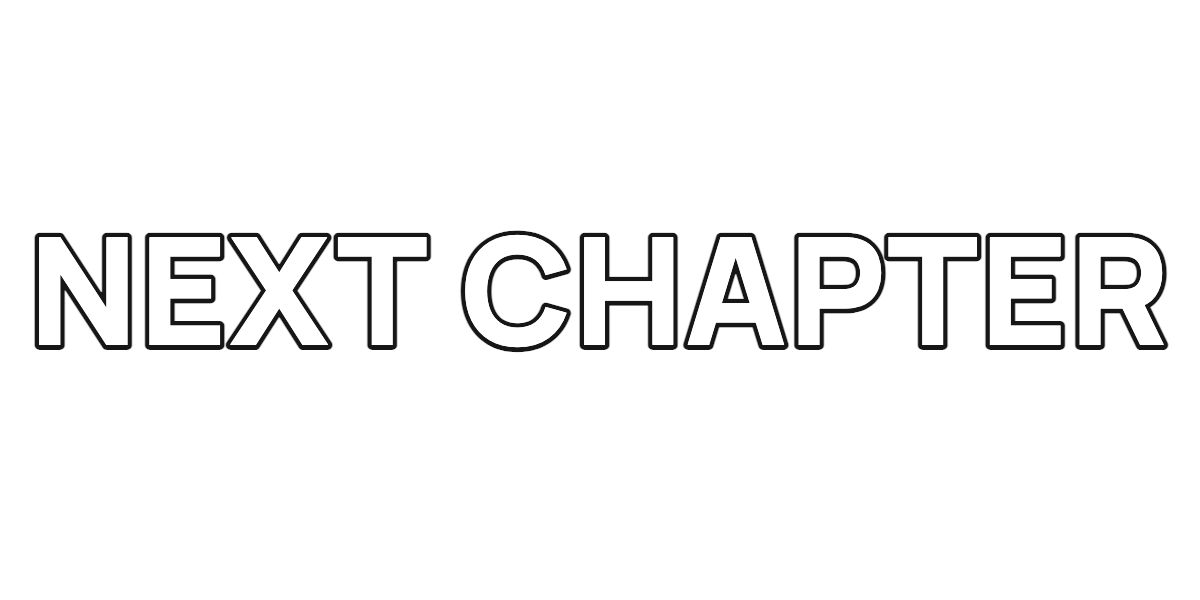
For a reusable video title or thumbnail label, make the lettering as a transparent PNG and keep the rest of the layout editable. This workflow uses the free PNG text generator: it renders bundled fonts in your browser, needs no account and uses no AI credits.
The example above is an actual browser render of NEXT CHAPTER, with Manrope, white fill and a black outline. Its empty background lets you put the same title over a photo or video. It is a static image, rather than a font file or an editable text layer.
Start with a size that fits your placement
Open the wide-title preset for a 1200 × 600 canvas. The starting settings use 180 px text, 2 px letter spacing, a 6 px black outline and a transparent background. Text may scale down to fit, so check the rendered size shown by the editor.
- A landscape heading or thumbnail label: start with the wide title. Keep the PNG at its original size or smaller in your final design.
- A compact title block: try the square preset at 1080 × 1080 and use line breaks deliberately.
- A portrait layout: try the portrait preset at 1080 × 1920. The canvas is a working area, not a guarantee that your title should fill the whole video frame.
Each canvas dimension can be 128–2048 pixels. A larger canvas gives you more source pixels; enlarging a small export later does not add detail. The tool accepts up to 500 characters and 12 lines, but a few readable words usually work better for an overlay.
Prepare the overlay
- Replace NEXT CHAPTER with your short title. Keep subtitles, dates or information you expect to change as native text in your destination editor.
- Choose a bundled font in the picker. Check the exact characters you need; emoji and scripts outside the selected font's coverage may use a fallback.
- Select a fill and outline with enough contrast for your footage. White letters with a dark outline are a starting point, not a substitute for checking the actual background.
- Leave Transparent background selected. Switch the preview between checkerboard, dark and light. These preview backdrops do not become part of a transparent export.
- Wait for the preview to finish preparing, then download the PNG. Save the original file rather than taking a screenshot.
Place it in Canva
Upload the saved PNG to the design you are working on, add it as an image and resize it proportionally. Place a colored shape or photo underneath to confirm that the empty area is transparent. If your headline needs to change frequently, use Canva text elements instead: importing a PNG does not turn its words into editable text.
For a thumbnail, leave breathing room around the label, check the title at phone size and avoid shrinking it to a tiny corner. Put episode numbers or supporting copy in separate text elements so those details stay easy to update. Canva's official upload requirements describe supported image formats, including PNG.
Place it over video in CapCut
Import the PNG into your project and place it on an image layer above the video. Use your editor's timing controls to decide when it appears and how long viewers can read it; control names vary between mobile, desktop and web versions. Resize the title proportionally and keep it inside the visible frame.
Review both a bright and a dark moment in the footage. If a white letter disappears over a bright area, strengthen the outline, change the fill or move the title to a cleaner part of the frame. Any fade or movement comes from the video editor; the PNG itself does not animate. CapCut's official picture-overlay guide explains the image-layer workflow.
Check the exported result
A white or black rectangle surrounds the title. First place the original PNG over a colored surface: a viewer may simply be showing its own backdrop. If the rectangle is part of the image, return to the PNG tool, select transparency and export again. This tool creates new lettering; it does not remove a background from an uploaded AI image.
The lettering looks soft. Use the original download and keep its placement no larger than the source dimensions. Increase the canvas size before exporting when you need a larger asset.
The text is unexpectedly small. Long lines scale down together to stay inside the canvas. Shorten the title or add a line break, and inspect the rendered font size.
You need an arched heading or ring. Use the curved text generator and follow the badge and thumbnail tutorial. It also exports a static PNG.
Need cutout letters or a game-inspired title? The ransom note generator makes mixed paper letters, while the Sonic-inspired title maker adds a bold outline and an optional subtitle. Both render your exact supported text locally and export transparent PNGs for the same Canva and CapCut workflow.
For the difference between rendered lettering and an installable typeface, read font generator vs font file. Start your own overlay in the PNG editor.