Curved Text for a Badge or Thumbnail: Two PNG Workflows
Make a circular badge title or an arched thumbnail heading with real preset settings. Compare Arc, Circle, Wave and Line, then export a transparent PNG.
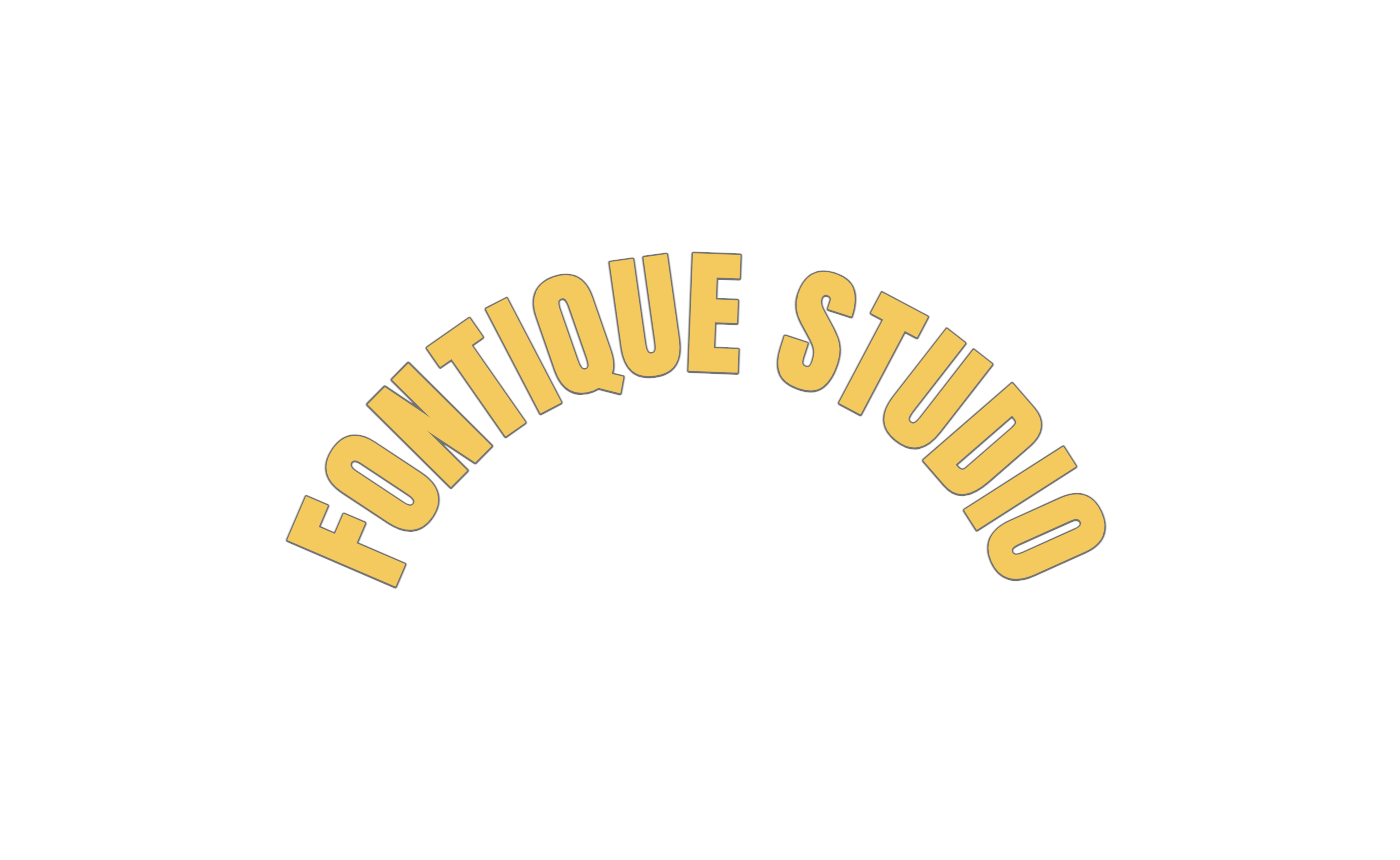
Curved lettering works best when its shape has a purpose. A ring can frame an emblem; an arc can leave space beneath a thumbnail heading. The free curved text generator renders actual font shapes in your browser and exports a 1400 × 860 PNG. It requires no account or AI credits.
The image above is an actual transparent PNG from the arched-headline preset. The tool also shows the same phrase in four shapes so you can compare the layout without changing the words. Its output is a raster image, not an editable path, SVG or font file.
Workflow 1: A circular badge title
Open the badge-ring preset. It starts with Circle, Manrope, a 250 px radius, 80 px font size, 6 px letter spacing and a transparent background.
- Replace the sample with a short name or phrase. Avoid dense small print around the ring.
- Check the beginning and end of the phrase. Circle distributes the characters around a full ring; it is not a separate top-and-bottom badge text editor.
- Adjust the radius and spacing together. A large radius can create more empty area in the center, while excessive spacing may make the words difficult to read.
- Download when the font and preview are ready. Place the PNG over an emblem or photo in Canva, leaving any date or supporting text as ordinary editable text.
The editor fits the complete lettering into its fixed canvas. The selected radius is a working parameter, rather than a promise that the final ring keeps that exact physical size after fitting or after you resize it in another app.
Workflow 2: An arched thumbnail heading
Open the arched-headline preset. It starts with Arc, Anton, a 360 px radius, 136 px font size, 4 px letter spacing and a transparent background.
Use a short phrase with strong letterforms. Place the exported arc above a subject or an image panel, then check it at the size of a phone preview. Keep the letters clear of the outer edges of the thumbnail. If the phrase becomes too small, shorten it before enlarging the PNG.
For an overlay in CapCut, import the PNG on an image layer and set its display time in the video editor. Its curved geometry stays fixed. To animate individual letters or change the wording in the destination app, use that app's editable text features instead.
What the four shapes change
| Shape | Use it for | Available controls | | ------ | --------------------------------- | ------------------------------------------------------------------------- | | Arc | A heading with space underneath | Radius changes the bend; size and spacing affect fit. | | Circle | A phrase around a badge or emblem | Radius and spacing shape the ring. | | Wave | A flowing, playful heading | The wave path is fixed; font size and spacing still change the lettering. | | Line | A straight heading for comparison | Radius has no effect. |
The four comparison previews use the same phrase and font. Selecting a preset changes the settings while preserving your current words. Radius controls apply to Arc and Circle; Wave and Line do not gain a curve from the radius slider.
Export and inspect the result
Keep Transparent background selected for an overlay. The preview backdrop helps you see the composition, but a transparent download contains only the lettering and its outline. Turn transparency off when you deliberately want the chosen background color included.
The canvas is always 1400 × 860 pixels. Longer text automatically fits inside it, which can make the final letters smaller than the selected font size. Check the actual PNG over a light and dark background, and use the original download at its source size or smaller. The tool accepts up to 80 characters; short names usually make a clearer badge or thumbnail.
The ring looks crowded. Shorten the phrase, reduce spacing or use Arc for a partial heading rather than a complete ring.
The radius slider does nothing. Switch to Arc or Circle. Wave follows a fixed path; Line is straight.
A letter is missing or looks different. Check the selected font's character coverage and wait for the font to load. If loading fails, use the retry control before downloading.
You need several lines or an exact custom canvas. Use the PNG text editor for straight multiline text, with independently chosen width and height. The Canva and CapCut overlay tutorial covers placement and readability checks.
Start with the badge ring or the arched heading, and choose the shape that leaves room for your design.